
Storing your letterhead
Your own letterhead as a PDF, ImmoDok prints the invoice onto it and never stores your company details in the first place.
Who this is for:
Owners
2 min readUpdated: 02/09/2026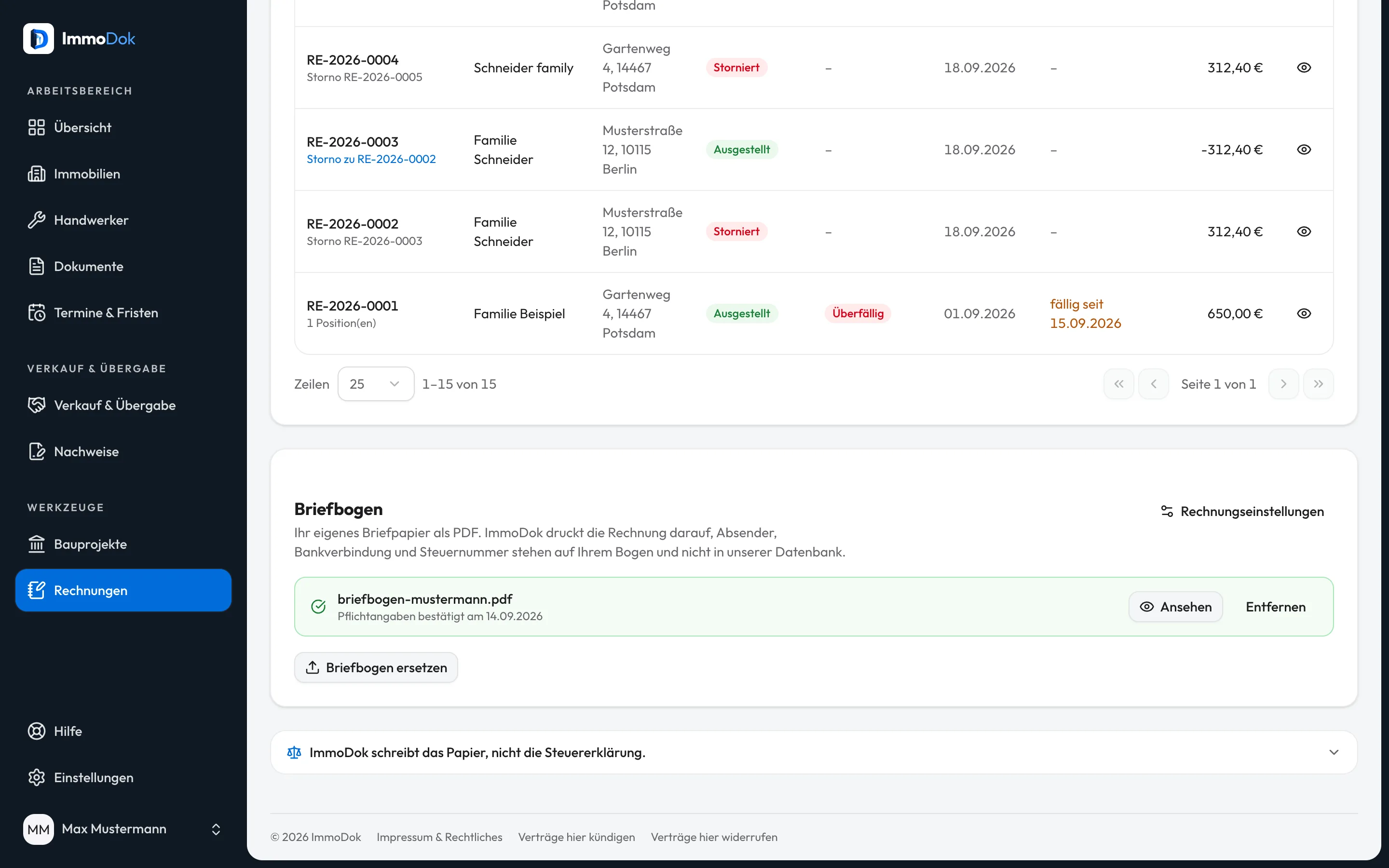
Step by step
- Open "Write an invoice" and upload your letterhead as a single-page PDF.Up to 8 MB, A4 portrait
- Confirm that it carries your name, address and tax number or VAT ID.§ 14 Abs. 4 no. 1 and 2 UStG
- Set the number range, payment term and small-business status under Settings → Invoices.Once per account
The result: Every invoice appears on your own paper. ImmoDok knows neither your address nor your bank details or tax number; they are on your sheet, not in our database.
Open in the product
What if it does not work?
- The letterhead will not upload.
- ImmoDok converts the first page into an image so it can sit under the invoice. When that fails the file is usually password-protected or damaged, export it as a PDF again.
- An old invoice does not show the new letterhead.
- Intentional: issued invoices are frozen and the PDF filed back then stays unchanged. The new sheet applies to everything rendered from now on.
- Why do I have to confirm the mandatory details myself?
- The sheet reaches ImmoDok as an image, we cannot read what is on it. The confirmation is logged with its date and is reset whenever the sheet is replaced.